

Delivery Status Lifecycle
This document explains the lifecycle of a notification created using OsmoX and the various delivery status states.Lifecycle Diagram
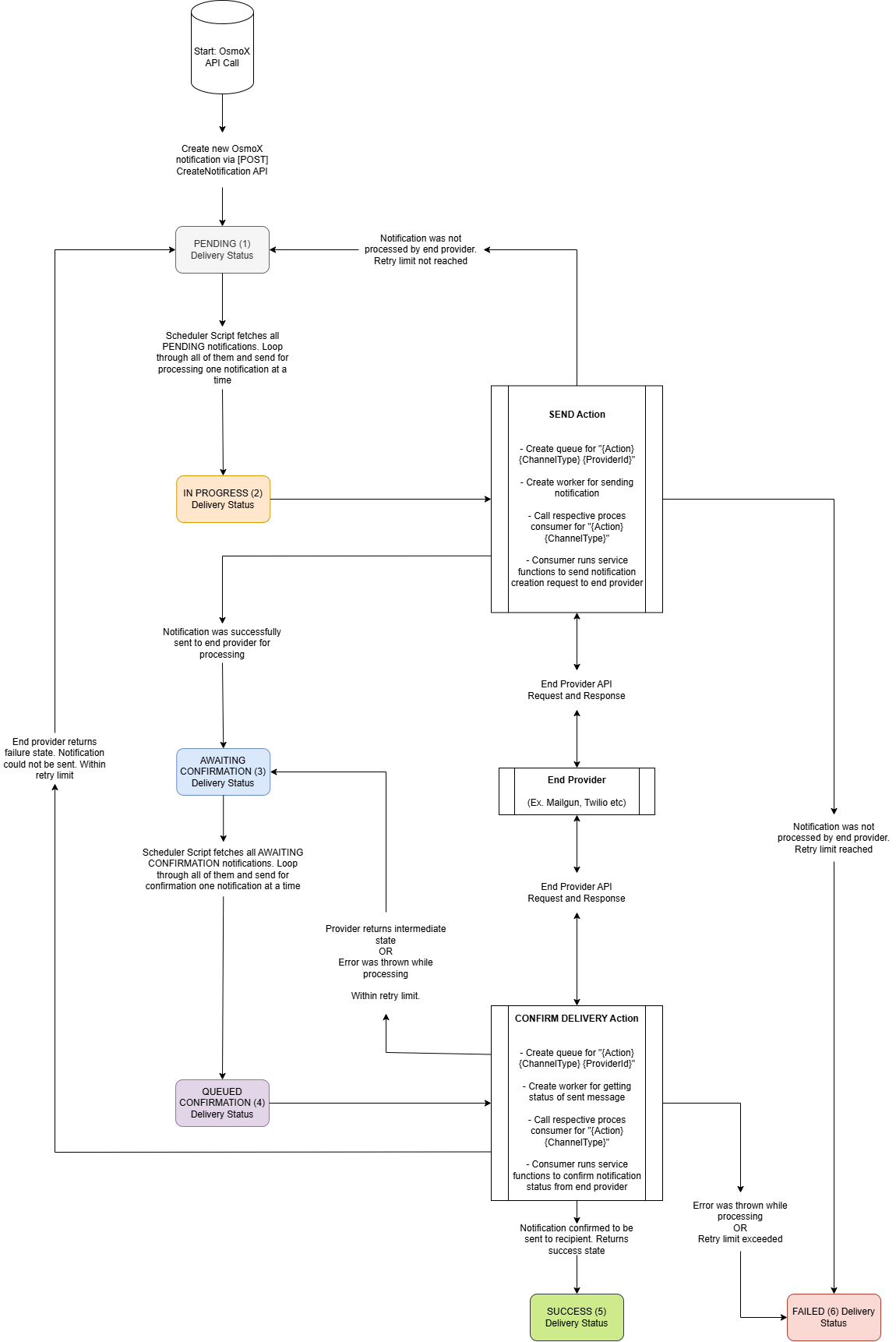
Delivery Status Values
| Status | Value | Description |
|---|---|---|
| PENDING | 1 | The notification is awaiting processing |
| IN PROGRESS | 2 | The notification is currently being sent |
| AWAITING_CONFIRMATION | 3 | The notification is awaiting delivery confirmation from the provider |
| QUEUED_CONFIRMATION | 4 | The notification is added to the confirmation queue |
| SUCCESS | 5 | The notification was successfully delivered |
| FAILED | 6 | The notification delivery failed |
Status Flow
1
PENDING (1)
When a notification is created via the API, it starts in the
PENDING status. The notification is stored in the database and waits to be picked up by the scheduler.2
IN PROGRESS (2)
The scheduler picks up pending notifications and adds them to their respective channel queues. Once a queue worker starts processing, the status changes to
IN PROGRESS.3
AWAITING_CONFIRMATION (3)
After the notification is sent to the provider, if the provider supports delivery confirmation, the status changes to
AWAITING_CONFIRMATION. This means OsmoX is waiting for the provider to confirm successful delivery.4
QUEUED_CONFIRMATION (4)
The notification is added to a confirmation queue for periodic status checks with the provider.
5
SUCCESS (5)
The notification was successfully delivered to the recipient. This is a terminal state.
6
FAILED (6)
The notification delivery failed after all retry attempts. This is a terminal state.
Status Transitions
Provider Confirmation Support
Not all providers support delivery confirmation. The behavior depends on the provider:Providers with Confirmation
- Mailgun
- Twilio SMS
- Twilio WhatsApp
Providers without Confirmation
- SMTP
- 360Dialog
Archival Process
Once a notification reaches a terminal state (SUCCESS or FAILED), the scheduler eventually moves it from the notify_notifications table to the notify_archived_notifications table.
The archival process runs periodically based on your scheduler configuration. Archived notifications can still be queried via the archived notifications API.
Tracking Status
You can track notification status in several ways:- API Query: Use the GraphQL API to fetch notification status by ID
- Webhooks: Configure webhooks to receive real-time status updates
- Database: Query the
notify_notificationsornotify_archived_notificationstables directly
Retry Behavior
When a notification fails:- The
retry_countis incremented - The notification is re-queued for another attempt
- After max retries, the status is set to
FAILED
The retry count and failure details are stored in the
result field as JSON.